
Install the Traccar Client App from Google App Store or iPhone
Visit this URL to configure the app.
On a separate computer, visit: https://maps.ertrak.com/traccar-config/ and plug in your phone number. It will generate a QR code.
In the app under Settings – select Change Settings
Then, use the widget at the right of the ‘Settings’ on the image you shared below, which will use the camera to allow you to scan the QR code, which will update the settings.
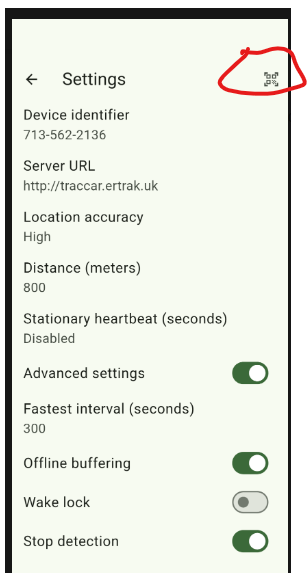
Then, exit the settings pane, and disable / enable the continuous tracking.
Then, open https://maps.ertrak.com/m4/gft
And then, open LS and enable ‘trackers’, and make sure no groups are checked.
Then, use the ‘SS’ and plug in the last 4 of your phone number, and see if the map finds you.